
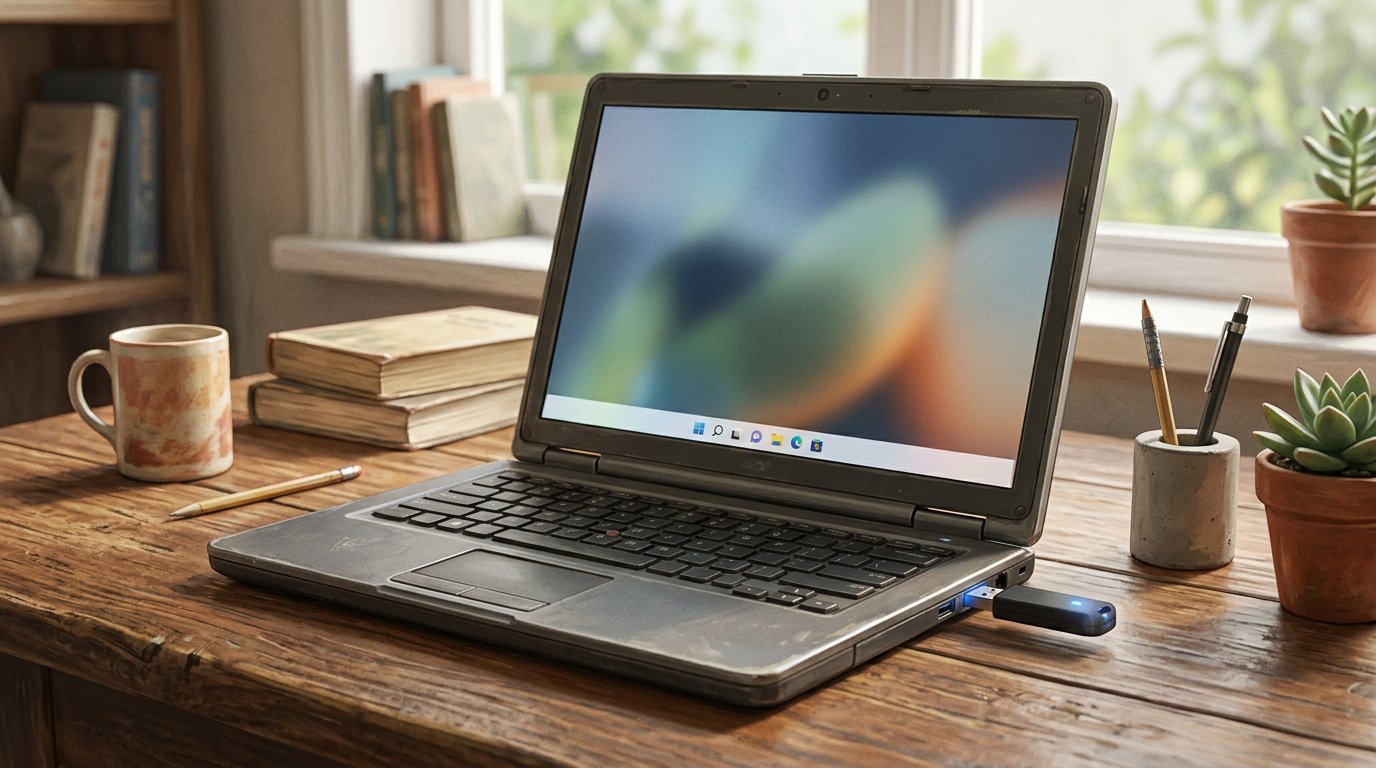
Millions of perfectly usable PCs fall short of the hardware rules for newer versions of Windows. Replacing them is expensive, and switching them to Linux has long meant asking people to relearn the basics. Winux takes a different route: it keeps the computer, keeps a desktop that looks and behaves like Windows 11, and swaps the engine underneath for Ubuntu Linux. This article explains what Winux is, who it suits, and then walks step by step through downloading it, creating a bootable USB drive with the free Rufus tool, and installing it on a PC.
What Winux is
Winux describes itself on its official website as a way to “keep your PC” and “move to a modern desktop that still feels instantly familiar,” aimed at people moving on from older operating systems. The project, previously known as LinuxFX and Wubuntu according to PC Games Hardware, says it has passed 6 million downloads on SourceForge.
Underneath, it is Ubuntu 24.04 LTS with a heavily customized KDE Plasma desktop. Windows Central managing editor Richard Devine, who tested it in September 2025, wrote in his hands-on review that the taskbar, Start menu and even the right-click menu “look right,” and called it “probably the least scary Linux distro” he had seen for someone coming from Windows. He also noted where the illusion ends: the file manager is KDE’s Dolphin, the terminal is Konsole, and Microsoft Office is offered through web shortcuts rather than desktop apps.
What is new in Winux 11.26.11
The current release, Winux 11.26.11 LTS (Noble), dated October 27, 2026, is described on the Winux news page. Highlights listed by the project include:
- Linux kernel 7.0 for 2026 hardware, with Legacy BIOS and UEFI boot and no TPM, Secure Boot or POPCNT requirement.
- Wine 11 for running .exe and .msi programs, plus WinBoat for Windows desktop applications.
- Preinstalled Microsoft Edge, Google Chrome, Opera GX, Steam and the Heroic Games Launcher.
- Android app support with the Play Store, a OneDrive compatible interface, and graphical Active Directory sign in.
- Security updates delivered through Ubuntu, and Winux tool updates delivered over the air by the Winux team.
The core system is free to use indefinitely, the project says. Installation includes 30 days of the Winux Professional Tools for evaluation; afterwards only certain administrative and Professional Tools functions are limited until a PRO license is activated, and the project states that Winux Professional is free for students on request. These are the project’s own descriptions and claims, so treat compatibility with specific Windows programs as something to test, not assume.
Before you start: requirements and preparation
The Winux download page lists a suggested baseline: a 64-bit dual-core processor, 4 GB of RAM, 32 GB of free disk space, a 1366×768 display, and a USB flash drive for the installer. You will also need:
- A Windows PC to build the USB drive. Rufus requires Windows 8 or later, according to rufus.ie.
- A USB flash drive you can erase. Canonical’s Rufus guide asks for 4 GB or larger for Ubuntu; an 8 GB or larger drive gives Winux more headroom. Everything on it will be deleted.
- A full backup of the target PC. Installing an operating system can erase the disk. Copy documents, photos and browser data to an external drive or cloud storage first.
Step 1: Download and verify the Winux ISO
- Go to the Winux download page and choose Download Release (SourceForge), the torrent, or an alternate mirror. The current file is named
winux-11.26.11-noble-lts.iso. - Save it to your Downloads folder, not directly onto the USB drive, as Canonical’s guide also advises.
- Check the download is intact. Open PowerShell and run:
Get-FileHash "$env:USERPROFILE\Downloads\winux-11.26.11-noble-lts.iso" -Algorithm MD5
Compare the result with the MD5 sum published on the Winux news page:20a181d465515c5294486d167b60d18e. Microsoft’s Get-FileHash documentation notes that MD5 is suitable for simple change checks like this, so it confirms the file was not corrupted in transit. If the values differ, download the file again.
Step 2: Create the bootable USB drive with Rufus
- Download Rufus from rufus.ie. The current stable version is 4.15 (released June 30, 2026); most PCs need the standard Windows x64 file,
rufus-4.15.exe. No installation is needed: run the file directly. Rufus’s site says the program is digitally signed by “Akeo Consulting.” - Plug in the USB drive. Rufus selects it in the Device field. If several drives are connected, pick the correct one from the list, or unplug the others to avoid mistakes.
- Next to Boot selection, click SELECT, choose the Winux ISO, and click Open. The volume label updates automatically.
- Leave the other settings at their defaults. Rufus normally picks a GPT partition scheme for modern UEFI PCs; if you are installing on an older PC that only uses Legacy BIOS, select MBR instead.
- Click START. If Rufus asks to download additional files, choose Yes.
- When Rufus reports an ISOHybrid image, keep Write in ISO Image mode (Recommended) and click OK. This is the mode both Canonical’s guide and the Rufus FAQ recommend. If the finished drive later fails to boot, recreate it and choose DD Image mode as a fallback.
- Confirm the warning that all data on the drive will be destroyed, after double checking the drive letter.
- Wait for the green bar to show READY, then click CLOSE and safely eject the drive.
Step 3: Boot the target PC from the USB drive
- Insert the USB drive into the PC you want to install Winux on and restart it.
- Open the one time boot menu while the PC starts. The key varies by maker; Canonical notes it is usually F12; other makers often use Esc, F10 or F11. Choose the USB drive from the list.
- If the PC skips straight to its old operating system, enter the firmware setup (often F2 or Del), move USB to the top of the boot order, save, and restart. Winux states it does not require Secure Boot or TPM, so older machines without them are supported.
- The drive loads a live Winux desktop. Use it to check that Wi-Fi, sound, graphics and the touchpad work before you change anything on the disk.
Step 4: Install Winux with the Calamares installer
Winux uses the Calamares installer, as PC Games Hardware notes. Calamares is a widely used installer framework, and its screens typically follow this order (exact wording can vary by release):
- Launch the installer from the live desktop shortcut.
- Choose your language, then your region and time zone, then your keyboard layout.
- On the Partitions screen, pick one option:
- Erase disk replaces everything on the drive with Winux. This is the simplest choice for a PC you are fully moving over.
- Install alongside keeps the existing system and lets you choose which to start at boot. Use the slider to give Winux at least the recommended 32 GB.
- Manual partitioning is for experienced users who want custom layouts.
- Enter your name, computer name, username and password.
- Review the Summary page carefully, because disk changes are applied once you continue. Then click Install.
- When installation finishes, tick Restart now, click Done, and remove the USB drive when prompted.
Step 5: First steps after installation
- Connect to the internet and run all available updates. Winux says security updates come from Ubuntu’s maintainers and its own tools update over the air.
- If you use NVIDIA or Intel Arc graphics, check that the right drivers are active. Windows Central found AMD graphics worked straight away, while other GPUs still needed drivers in its testing.
- Sign in to Edge or Chrome to restore bookmarks, and test any Windows programs you depend on through Wine or WinBoat before retiring the old setup.
- Explore the Winux Professional Tools during the 30 day evaluation to decide whether the paid features matter to you.
What it means
For IT teams and households alike, Winux shows how much of the barrier to Linux is familiarity rather than capability. A Windows-style desktop on a long-term-support Ubuntu base can keep older hardware productive and reduce electronic waste, while tools like Rufus make the switch an afternoon task rather than a specialist project. The trade-offs are real: Winux is a community distribution with paid add-ons, Windows application support depends on compatibility layers, and Microsoft 365 runs through the web. Organizations should pilot it on a few machines, confirm their key applications, and keep a recovery plan before rolling it out widely.
Conclusion
Winux 11 offers a practical second life for PCs left behind by newer hardware rules, wrapped in a desktop that most Windows users can navigate on day one. With a verified ISO, a Rufus USB drive and the Calamares installer, the move is well within reach of a confident home user. Test it live first, back up everything, and let the hardware you already own keep working.
Sources
- Winux: Breathe New Life Into Your Computer (official site)
- Winux: Download Winux 11, specifications and hardware requirements
- Winux News: Winux 11.26.11 release announcement
- Rufus: Create bootable USB drives the easy way
- Rufus FAQ (GitHub)
- Canonical: Create a bootable USB stick with Rufus on Windows
- Microsoft Learn: Get-FileHash
- Windows Central: I tried WINUX, a promising Windows 11 experience inside a Linux distro
- PC Games Hardware: Winux 11, Windows replica now on Linux 7.0 (German)